Chapter 7 Trustee's Final Report /Application for Attorney for Trustee Fees
Last Updated: December 23, 2025
|
11 U.S.C. Events: See below |
Last Updated: March 26, 2025
- The U.S. Trustee will file the Final Report.
- The Panel Trustee will then file the Notice of Final Report and Application for Attorney Fees (if any).
- Notice re Final Report is not required if the net proceeds realized are less than $1,500. Rule 2002(f)(8).
- Notice re Application for Attorney for Trustee Fees is not required if amount requested is less than $1,000.00. Rule 2002(a)(6).
- The Court sends the Notice to all creditors via the BNC.
A. U.S. Trustee will file Final Report:
-
In ECF, select [Bankruptcy > Trustee/US Trustee].
-
Enter the case number (e.g, xx-xxxxx).
-
Select [Final Report (Chapter 7)] from the event list.
-
Select the party filer.
-
Browse to select the Final Report (pdf file).
Note: The Final Report and any Exhibits may be a single PDF; or any Exhibits may be added as an attachment to this document. The Final Report must be the first document in your PDF. -
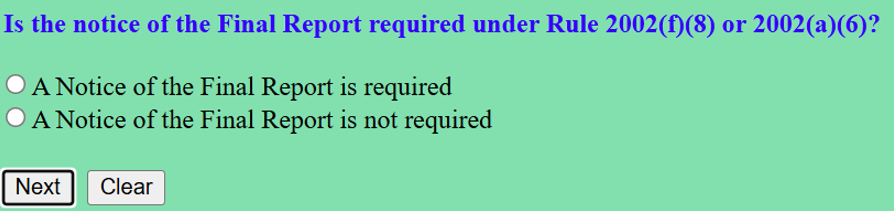
Select the appropriate radio button to indicate if a Notice of Final Report is required or not.
-
Review the final docket text.
-
Confirm text correctly states whether a Notice of Final Report is required or not.
-
Verify the final docket text; If correct, click [Next] to submit your document(s).
-
Note: The Notice of Electronic Filing displays giving you the document number. Copies of this notice are immediately e-mailed to all participants who receive electronic notification in the case.
B. Panel Trustee will file Notice of Final Report:
The Final Report event will state if the Notice of Final Report is required or not.
Note: No notice is required if the net proceeds realized is less than $1,500.
-
In ECF, select [Bankruptcy > Trustee/US Trustee].
-
Enter the case number (e.g, xx-xxxxx).
-
Select [Notice of Chapter 7 Final Report] from the event list.
-
Skip the Joint Filing screen.
-
Select the party filer.
-
Enter the last day to object (defaults to 21 days; modify if necessary).
-
Refer to the Chapter 7 Final Report.
-
Verify the final docket text; if correct, click [Next] to submit your document(s).
Note: The Notice of Electronic Filing displays giving you the document number. Copies of this notice are immediately e-mailed to all participants who receive electronic notification in the case.
C. Panel Trustee will file Proposed Order Approving Trustee's Compensation and Bankruptcy Fees:
-
In ECF, select [Bankruptcy > Miscellaneous].
-
Enter the case number (e.g, xx-xxxxx).
-
Select [Proposed Order-Attorney] from the event list.
-
Skip the Joint Filing screen.
-
Select the party filer.
-
Enter the "Order to be signed on or after" date.
-
Browse to select the appropriate PDF file.
Note: Do not check the radio button to add attachments to this document IF the attachments should be part of the signed order. Instead, create a single PDF document that includes the attachments. -
Click [Next] to Upload a single order via docketing.
-
Refer to Final Report.
-
Enter the Order Type.
-
Modify the text as appropriate.
-
Verify the final docket text; if correct, click [Next] to submit your document(s).
Note: The Notice of Electronic Filing displays giving you the document number. Copies of this notice are immediately e-mailed to all participants who receive electronic notification in the case.
D. Panel Trustee will file Application for Attorney Fees (if any):
-
In ECF, select [Bankruptcy > Motions/Applications].
-
Enter the case number (e.g, xx-xxxxx).
-
Select [Compensation] from the event list.
-
Skip the Joint Filing screen.
-
Select the party filer.
-
Browse to select the Application (.pdf file).
Note: The Application, Notice of Application, and Proof of Service may be a single PDF or the Notice, supporting documents, and Proof of Service may be added as an attachment to this document. The Application must be the first document in your PDF. -
Enter the last day to object (defaults to 21 days; modify if necessary).
Note: Remove this date if you are not filing a Notice at this time. -
Check the filer (party receiving the fees); select the type (Trustee's Attorney); Leave dates from when, to when blank; and enter fees requested and expenses requested (i.e., 2000.00 and 125.00).
-
Modify the text as appropriate.
-
Verify the final docket text; if correct, click [Next] to submit your document(s).
Note: The Notice of Electronic Filing displays giving you the document number. Copies of this notice are immediately e-mailed to all participants who receive electronic notification in the case. -
Electronically file the Proposed Order.
E. Panel Trustee will file Proposed Order Approving Attorney's Fees (if any):
-
In ECF, select [Bankruptcy > Miscellaneous].
-
Enter the case number (e.g, xx-xxxxx).
-
Select [Proposed Order-Attorney] from the event list.
-
Skip the Joint Filing screen.
-
Select the party filer.
-
Refer to the Application for Attorney's Fees.
-
Enter the "Order to be signed on or after" date.
-
Browse to select the appropriate PDF file.
Note: Do not check the radio button to add attachments to this document IF the attachments should be part of the signed order. Instead, create a single PDF document that includes the attachments. -
Refer to Application for Attorney's Fees.
-
Enter the Order Type.
-
Modify the text as appropriate.
-
Verify the final docket text; if correct, click [Next] to submit your document(s).
Note: The Notice of Electronic Filing displays giving you the document number. Copies of this notice are immediately e-mailed to all participants who receive electronic notification in the case.